xrdp
xrdp is an open-source RDP server that we can run on a Linux desktop machine in order to be able to remotely connect to it using MS RDP. We can install RDP client in order to connect over the RDP connection. I am personally using MS Windows App as RDP client on my macOS.
By default, xrdp will be listening for connections at port 3389. To access this port over the internet, you will have to do one of below things:
- Port Forwarding (if behind a router) and Firewall Bypass (to allow external traffic).
- Reverse Proxy (tunnelling). I personally use this method. Read more about Cloudflare Tunnel.
You can read more about xrdp here: https://github.com/neutrinolabs/xrdp
Basic Commands
- Install the service:
apt install xrdp
- To start the service:
systemctl start xrdp.service
- To set the service to start at boot:
systemctl enable xrdp.service
- To restart the service:
systemctl restart xrdp.service
Display Server
By default, xrdp uses Xorg as the display server. However, it can be configured to use Wayland (GNOME) instead. You will have to first create a ~/.xsessionrc file in your user's home / root directory (you can SSH to do this) and then add the following lines:
export DESKTOP_SESSION=ubuntu
export GNOME_SHELL_SESSION_MODE=ubuntu
export XDG_CURRENT_DESKTOP=ubuntu:GNOME
Read more about this issue here: https://github.com/neutrinolabs/xrdp/issues/1723#issuecomment-746010514
Note: You will have to restart the xrdp service after the above changes.
Connecting to Remote Linux Desktop
Mapping RDP Port
I will be using Cloudflare Tunnel for accessing the remote RDP port and map it to my local RDP port, so that I can initiate the connection on RDP client. If you wish to use this method, make sure you have cloudflared installed on your machine.
cloudflared access rdp --hostname <your-sub-domain>.<your-domain>.com --url rdp://localhost:3389
Also, make sure cloudflared daemon service is running on your remote server and you have already added RDP port in public hostnames of your Cloudflare tunnel. Read Cloudflare Tunnel to learn more on how to do it.
Access Remote Machine Using RDP Client
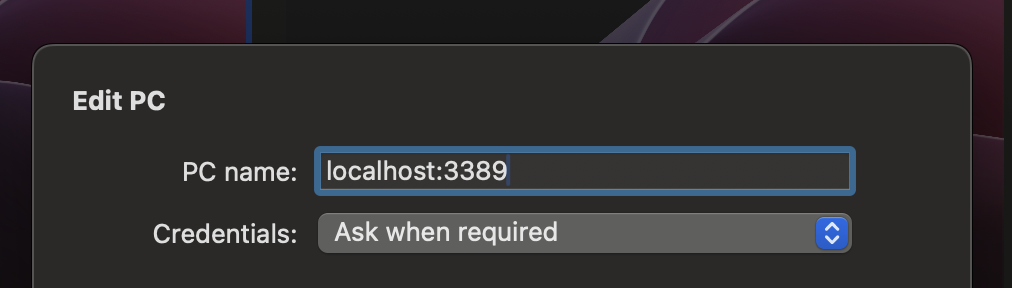
Go to your RDP client (MS Windows App in my case) and add a new device with hostname or IP address as localhost:3389.
You will be prompted for username and password.

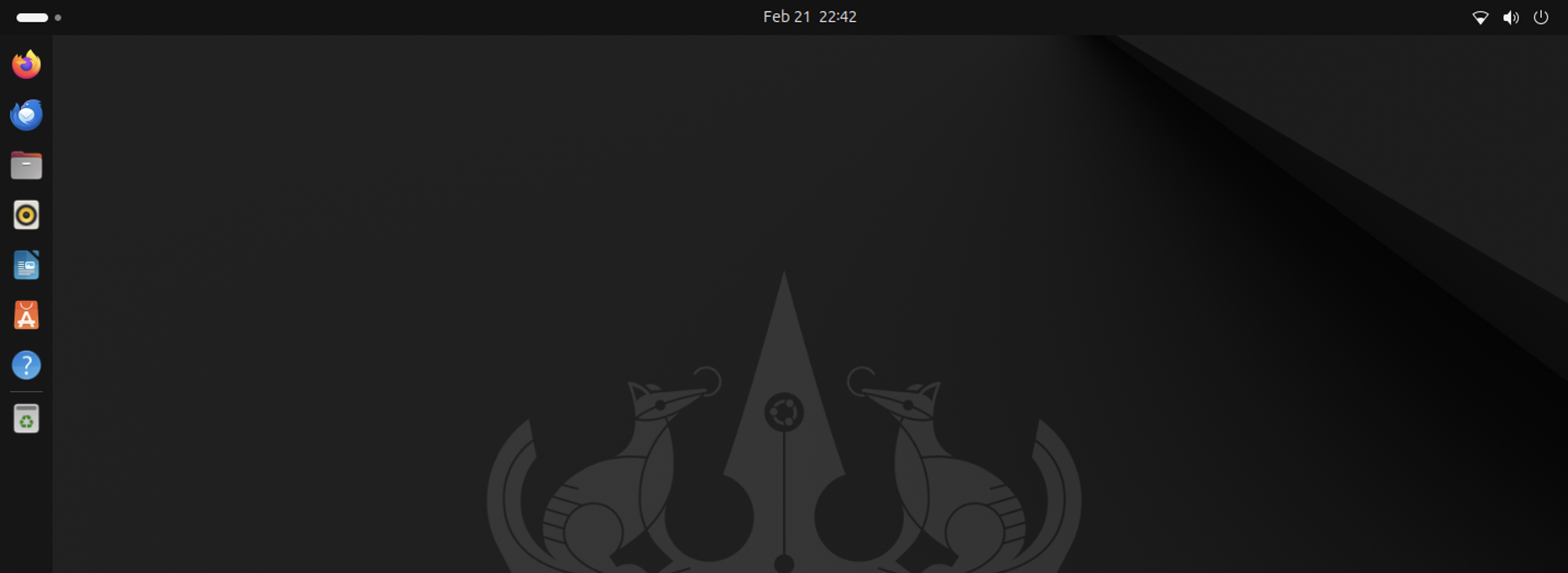
WOAH!!! You are in!
Troubleshooting
Port 3389 Gets Taken?
Sometimes, xrdp stops working on remote desktop because port 3389 gets taken over by some other service; which will be Gnome Remote Desktop (Ubuntu's default RDP) most likely:
-
Check if the port is taken by some other service:
sudo netstat -tulpn | grep :3389 -
Check the
xrdpservice logs using Superuser (admin) credentials:sudo systemctl status xrdp -
Stop the service running on port
3389to haltgnome-remote-desktopimmediately, but it will restart after a reboot.sudo systemctl stop gnome-remote-desktop -
Disable the service to prevent it from starting automatically at boot, but it can still be started manually if needed.
sudo systemctl disable gnome-remote-desktop -
Mask the service to completely block it from running, even manually.
sudo systemctl mask gnome-remote-desktopTo undo this later:
sudo systemctl unmask gnome-remote-desktop
Getting Blank / Black Screen?
Missing ~/.xsessionrc File
~/.xsessionrc file could be missing in the current user's file system / root directory. Read on how to create this file in #Display Server.
Stuck User Session
Sometimes, a user's active session gets stuck for unknown reasons (something I need to investigate someday). When this happens, we need to try unlocking the session. If that doesn't work, we may have to terminate the session and create a new one.
-
List all active sessions (sessions can be running for multiple users):
sudo loginctl list-sessions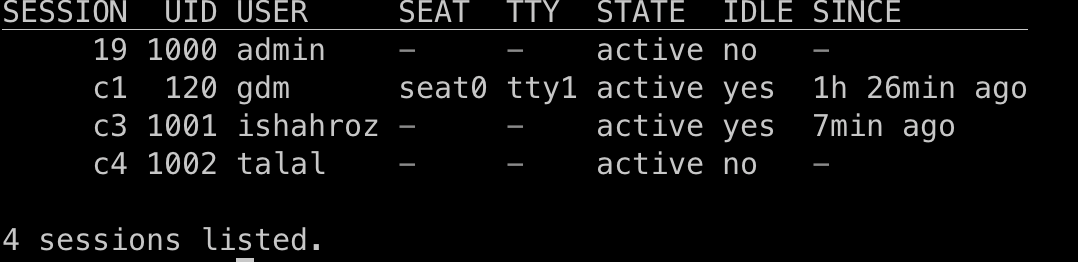
Look for the
session-idassociated with your user. From my observations, RDP sessions usually start with the letterc. -
Try unlocking the user's session and reconnect using the RDP client:
sudo loginctl unlock-session <session-id> -
If unlocking doesn’t work, terminate the session and recreate it (Note: This may close all open applications and workspaces from the previous session. Womp womp!)
sudo loginctl terminate-session <session-id>
Stuck on "Connecting" Screen in Windows App (RDP Client)?
Disable Wayland by going to /etc/gdm3/custom.conf:
WaylandEnable=false
Update the XRDP startup script:
admin@eva:~$ sudo cat /etc/xrdp/startwm.sh
#!/bin/sh
# xrdp X session start script (c) 2015, 2017, 2021 mirabilos
# published under The MirOS Licence

# Rely on /etc/pam.d/xrdp-sesman using pam_env to load both
# /etc/environment and /etc/default/locale to initialise the
# locale and the user environment properly.

if test -r /etc/profile; then
	. /etc/profile
fi

if test -r ~/.profile; then
	. ~/.profile
fi

# test -x /etc/X11/Xsession && exec /etc/X11/Xsession
# exec /bin/sh /etc/X11/Xsession

exec gnome-session --session=ubuntu
Restart the services:
sudo systemctl restart gdm3 xrdp xrdp-sesman
You might also need to restart Windows App (RDP client) on MacOS and kill your user's current session using SSH before connecting again.